顯示具有 Electric imp 標籤的文章。 顯示所有文章

2017年2月25日 星期六

[Electric imp] 如何在agent 網頁顯示控制項

以往我們都把agent網頁當作一個處理我們post過去參數的後端,

如何讓它變成前端呢?


在IDE裡將以下內容貼在agent端的程式碼


const html = @"<!doctype html>
 
<html lang=""en"">
<head>
  <meta charset=""utf-8"" />
  <title>Electric Imp NeoPixel Colorpicker</title>
  <link rel=""stylesheet"" href=""https://code.jquery.com/ui/1.10.3/themes/smoothness/jquery-ui.css"" />
  <script src=""https://code.jquery.com/jquery-1.9.1.js""></script>
  <script src=""https://code.jquery.com/ui/1.10.3/jquery-ui.js""></script>
  <style>
  #red, #green, #blue {
    float: left;
    clear: left;
    width: 300px;
    margin: 15px;
  }
 
  #red .ui-slider-range { background: #d3d3d3; }
  #red .ui-slider-handle { border-color: #ef2929; }
  #green .ui-slider-range { background: #8ae234; }
  #green .ui-slider-handle { border-color: #8ae234; }
  #blue .ui-slider-range { background: #729fcf; }
  #blue .ui-slider-handle { border-color: #729fcf; }
  </style>
  <script>
    function sendToImp(value){
        if (window.XMLHttpRequest) {devInfoReq=new XMLHttpRequest();}
        else {devInfoReq=new ActiveXObject(""Microsoft.XMLHTTP"");}
        try {
            devInfoReq.open('POST', document.URL, false);
            devInfoReq.send(value);
        } catch (err) {
            console.log('Error parsing device info from imp');
        }
    }
  function hexFromRGB(r, g, b) {
    var hex = [
      r.toString( 16 ),
      g.toString( 16 ),
      b.toString( 16 )
    ];
    $.each( hex, function( nr, val ) {
      if ( val.length === 1 ) {
        hex[ nr ] = ""0"" + val;
      }
    });
    return hex.join( """" ).toUpperCase();
  }
  function refreshSwatch() {
    var red = $( ""#red"" ).slider( ""value"" ),
      green = $( ""#green"" ).slider( ""value"" ),
      blue = $( ""#blue"" ).slider( ""value"" ),
      hex = hexFromRGB( red, green, blue );
    $( ""#swatch"" ).css( ""background-color"", ""#"" + hex );
    sendToImp('{""red"":""' + red +'"",""blue"":""' + blue + '"",""green"":""' + green + '""}');
  }
  $(function() {
    $( ""#red, #green, #blue"" ).slider({
      orientation: ""horizontal"",
      range: ""min"",
      max: 255,
      value: 127,
      
      stop: refreshSwatch
    });
    $( ""#red"" ).slider( ""value"", 0 );
    $( ""#green"" ).slider( ""value"", 0 );
    $( ""#blue"" ).slider( ""value"", 0 );
  });
  </script>
</head>
<body class=""ui-widget-content"" style=""border: 0;"">
 
<p class=""ui-state-default ui-corner-all ui-helper-clearfix"" style=""padding: 4px;"">
  <span class=""ui-icon ui-icon-pencil"" style=""float: left; margin: -2px 5px 0 0;""></span>
  Lamp Web Controller 
</p>

<div id=""red""></div>
<div id=""green"" style=""display:none""></div>

<div id=""blue""></div>

<div id=""swatch"" class=""ui-widget-content ui-corner-all""></div>
 
 
</body>
</html>";

http.onrequest(function(request,res){
    if (request.body == "") {
        res.send(200, html);
    }else{
        local json = http.jsondecode(request.body);
        server.log(json)
        if("red" in json && "green" in json && "blue" in json){
            server.log("RGB: " + request.body);
            device.send("rgb", json);
        }else {
            server.log("Unrecognized Body: "+request.body);
        }
        res.send(200, "");
    }
});

執行畫面


這是我拿一個RGB的調整範例來改的,因為只需要二個拉bar,所以我把green不顯示

2016年5月21日 星期六

[Electric imp] imp001使用Uart與Arduino溝通


前言


Electric imp 官網上有提供一個使用UART與Arduino溝通的例子,

小弟實作了一下,約略了一點程式碼。

imp001 與擴充版


接線

依照Electric Imp pin mux ,如果使用設定檔為 uart57 的話,Tx是pin5 , Rx是pin7 。

Pin Mux

Pinuart
1289
uart
57
uart
12
i2c
89
i2c
12
spi
257
spi
189
DACADCPWMPulse
Count
WakePTPG
Trigger
1CTSTXSCLSCLKYesYesYesYesYes
2RTSRXSDAMISOYesYes
5TXSCLKYesYesYesFor Pin 7
7RXMOSIYesYes
8TXSCLMOSIYesYesFor Pin 5 or 9
9RXSDAMISOYesYesFor Pin 2


The imp supports speeds of between 460 and 1,875,000 Baud on uart12 and uart57, rising to 920-3,750,000 Baud with uart1289. That’s a wide range of speeds; select one which the device you’re connecting will support. The most commonly used speeds are 9600 Baud and 115,200 Baud, which all three imp UARTs support.


arduino            imp001

Tx(D1)                 pin7

Rx(D0)                 pin5
GND                    GND


程式碼


imp001

server.log("Device Started");

function arduinoData() {
    // Read the UART for data sent by Arduino to indicate the state of its LED.
    
    local b = arduino.read();
    while (b != -1) {
        // As long as UART read value is not -1, we're getting data
        local state = "Unknown";
        if (b == 0x10) state = "Off";
        if (b == 0x11) state = "On"
        server.log("LED: " + state);
        b = arduino.read();
    }
}

function blink(state) {
    // Write state (1 or 0) to the Arduino
    server.log("Setting LED to: " + state);
    arduino.write(state);
    imp.wakeup(1.0, function(){ blink(1 - state); });
}

// Alias UART to which Arduino is connected and configure UART
arduino <- hardware.uart57;
arduino.configure(9600, 8, PARITY_NONE, 1, NO_CTSRTS, arduinoData);

// Start blinking
blink(1);


blink(state)這個函式,每秒會傳送一次與上次相反的state值給arduino。


arduinoData()這個函式只付責讀取arduino送過來的值,並log印出狀態文字。

arduino


// Arduino device code

int led = 13;               // LED pin number

void setup() {
    Serial.begin(9600);     // Configure serial
    pinMode(led, OUTPUT);   // Configure LED pin
    digitalWrite(led, 0);   // Turn LED off
}

void loop() {
    int b = 0;

    // If there's data available
    if (Serial.available() > 0) {
        // Read a byte
        b = Serial.read();
        
        if (b == 0x00) {
            digitalWrite(led, LOW);
            Serial.write(0x10);
        } else if (b == 0x01) {
            digitalWrite(led, HIGH);
            Serial.write(0x11);
        }
    }
}
view raw


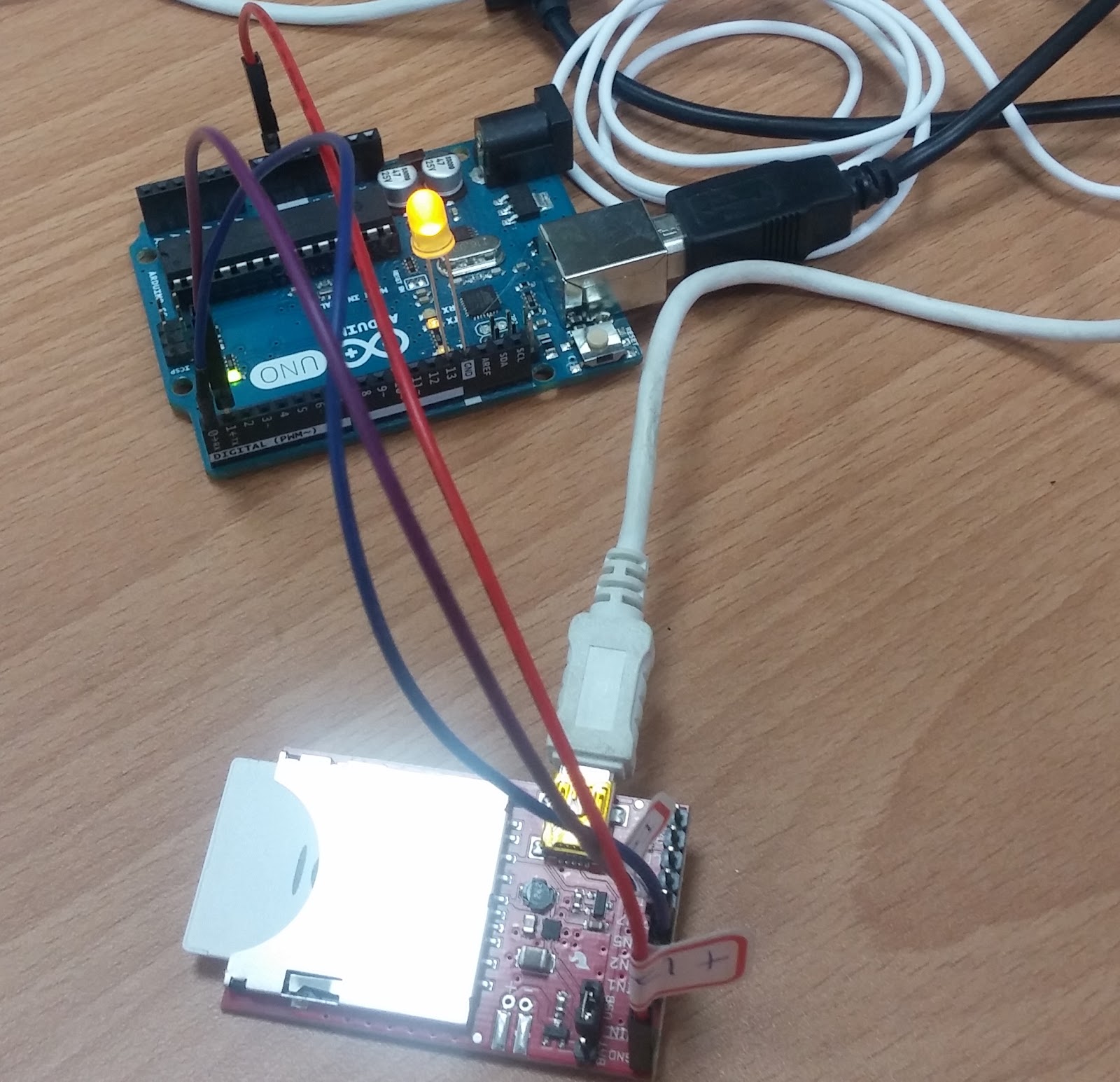
當arduino收到由Serial送過來的值時,若是0則將LED熄滅,並回送一個1的值給imp001,


若是收到1則日是點亮LED,並回傳0的值給imp001。


執行結果


如果你想要看到arduino實際收到的內容,你可以改用 SoftwareSerial 方式,


把原本的Serial留給電腦接USB看,程式碼如下

#include <SoftwareSerial.h>

SoftwareSerial mySerial(10, 11); // RX, TX
int led = 13;  
void setup() {
  // Open serial communications and wait for port to open:
  Serial.begin(9600);
   pinMode(led, OUTPUT);   // Configure LED pin
    digitalWrite(led, 0);   // Turn LED off
 

  // set the data rate for the SoftwareSerial port
  mySerial.begin(9600);
 
}

void loop() { // run over and over
  int b=0;
  if (mySerial.available()>0) {
    //Serial.write(mySerial.read());
      b = mySerial.read();
        if (b == 0x00) {
            digitalWrite(led, LOW);
            mySerial.write(0x10);
        } else if (b == 0x01) {
            digitalWrite(led, HIGH);
            mySerial.write(0x11);
        }
        Serial.println(b);
  }
  if (Serial.available()) {
    mySerial.write(Serial.read());
  }
}

但你要把接角換一下,

imp001  arduino

pin7       D11

pin5       D10

此時就可以看序列埠中觀看收到的資料了


參考資料:

https://electricimp.com/docs/resources/uart/

https://electricimp.com/docs/api/hardware/uart/configure/

2016年5月19日 星期四

[Electric imp] imp001 Pin Mux

Pin Mux

Pinuart
1289
uart
57
uart
12
i2c
89
i2c
12
spi
257
spi
189
DACADCPWMPulse
Count
WakePTPG
Trigger
1CTSTXSCLSCLKYesYesYesYesYes
2RTSRXSDAMISOYesYes
5TXSCLKYesYesYesFor Pin 7
7RXMOSIYesYes
8TXSCLMOSIYesYesFor Pin 5 or 9
9RXSDAMISOYesYesFor Pin 2


UARTMinimum baud rateMaximum baud rate
uart1289 or uart6E9167,500,000 (7.5Mbaud)
All other UARTs4573,750,000 (3.75Mbaud)


看了一下Eletric imp和Arduino溝通example code,用的是uart57 , arduino速度


是9600 。