顯示具有 Python 標籤的文章。 顯示所有文章

2018年9月16日 星期日

[Python] OSX esptool.py 燒錄MicroPython 到 Node MCU(CH340 USB to UART Chip)問題

在燒錄MicroPython到Node MCU後,使用adafruit ampy出問題

could not enter raw repl


網路上說加-d 2可解

ampy --port /dev/cu.wchusebserial1410 -d 2 ls

結果是卡住,沒有回應...Orz,該不是會沒燒好吧....


最後想到過去在工作中遇到CH3400 在linux上baud rate 250000 無法正確工作的情況,

仔細看了一下,它燒錄baud rate用460800~降速到115200看看,皆大歡喜。

esptool.py --port /dev/cu.wchusbserial1410 --baud 115200 write_flash --flash_size=detect 0 ~/Downloads/esp8266-20180511-v1.9.4.bin

目前試了2款Mac book Pro , MBP 2015用460800可以燒錄,不會有錯誤訊息,但有機會不成功,我就是踩到這個坑。

MBP 2017則會直接無法燒錄,改成115200後正常


參考資料
CH340 OSX flash error with speed greater 115200https://github.com/espressif/esptool/issues/145

[ESP8266] 燒錄MicroPython到Node MCU (OS X)

MicroPython 是一種精簡且高效率實作的 Python 3 程式語言,其中含有少量 Python 標準函式庫子集,針對在微控制器和受限環境中執行進行最佳化。

執行MicroPython需要的硬體如下:

至少

256K Flash Rom
16K RAM
時脈80MHz
------------------------------------------------------------------------------------


要在ESP8266上運行MicroPython,需要至少1MB的Flash Rom 版本,

(MicroPython Firmware大約佔去512K) ,而Node MCU選用的是ESP12E,

有4MB Flash Rom,十分足夠。


1.首先要下載MicroPython Firmware。

http://micropython.org/download#esp8266

到此連結選擇最新的穩定版本,撰寫本文時最新版本為esp8266-20180511-v1.9.4.bin


2.燒錄工具 (電腦需要有python環境以及pip工具), 建議用python3

pip3 install esptool

3.檔案工具Adafruit MicroPython Tool  (AMPY)

pip3 install adafruit-ampy

4.將Node MCU連接到電腦 ,確認是否可以看到Node MCU的Serial Port

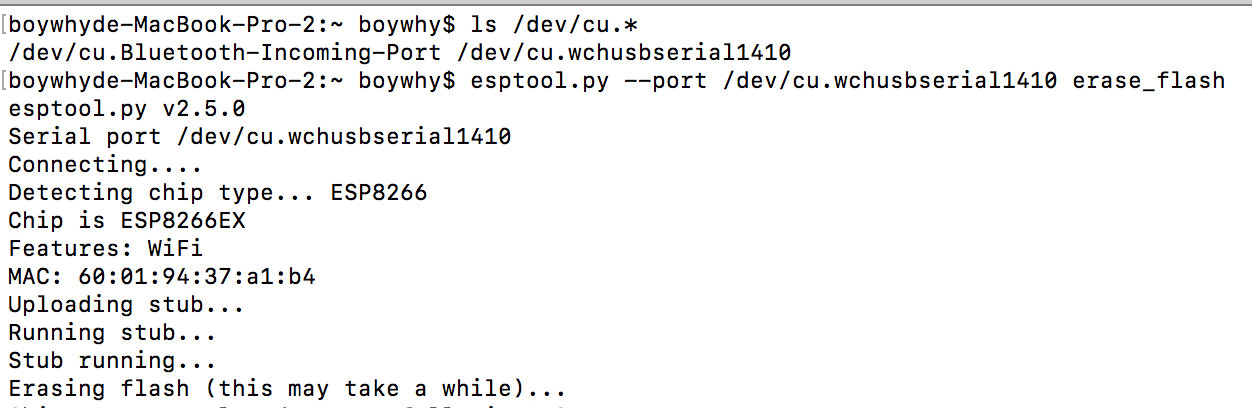
ls /dev/cu.*


若能夠看到/dev/cu.wchusbserial1410(或1420) 代表能夠捉到Node MCU的Serial Port (驅動成功安裝) , 如果沒有看到

需要確定您使用的Node MCU是使用那一個版本的USB to TTL晶片

若是CH340
安裝以下驅動(安裝完畢後必須重開機,並且在隱私設定中允許)

http://www.wch.cn/download/CH341SER_MAC_ZIP.html


若是CP2102 則安裝以下驅動,並允許隱私權中的設定,然候重開機
https://www.silabs.com/products/development-tools/software/usb-to-uart-bridge-vcp-drivers


5.抺除Node MCU中原廠的Firmware (注意 port可能和我不同)


CH340
esptool.py --port /dev/cu.wchusbserial1410 erase_flash


CP2102


6.寫入MicroPython Firmware

CP2102
esptool.py --port /dev/cu.SLAB_USBtoUART --baud 460800 write_flash --flash_size=detect 0 ~/Downloads/esp8266-20180511-v1.9.4.bin


CH340
esptool.py --port /dev/cu.wchusbserial1410 --baud 115200 write_flash --flash_size=detect 0 ~/Downloads/esp8266-20180511-v1.9.4.bin


7.透過ampy 查詢一下Node MCU中有什麼東要(測試燒錄是否成功)

CH340

ampy --port /dev/cu.wchusbserial1410 ls

出現錯誤 colud not entr raw repl

俺試過加入Delay 2秒也沒用,最後發現跟本是沒有燒好(MBP 2015不會跳錯,但不一定燒錄成功,而MBP 2017則是無法燒錄),在CH340的USB  To TTL晶片記得要在燒錄時把baud 改成 115200.


CP2102
ampy --port /dev/cu.SLAB_USBtoUART  ls


8.到此燒錄MicroPython已完成,接下來寫一個main.py

import time
from machine import Pin

led = Pin(2, Pin.OUT)
led.value(1)

while True:
    led.value(0)
    time.sleep_ms(500)
    led.value(1)
    time.sleep_ms(500)

9.將main.py丟到Node MCU

CP2102
ampy --port /dev/cu.SLAB_USBtoUART  ls
CH340
ampy --port /dev/cu.wchusbserial1410 put  main.py
接下來按下RST鍵,藍色LED就會以0.5秒間隔閃爍。


參考資料:

Malo老師的GitHub

CH340 OSX flash error with speed greater 115200


2018年9月14日 星期五

[Python] [SSL: TLSV1_ALERT_PROTOCOL_VERSION]


在OS X Python 2.7.14使用pip套件安裝出現以下錯誤

There was a problem confirming the ssl certificate: [SSL: TLSV1_ALERT_PROTOCOL_VERSION] tlsv1 alert protocol version (_ssl.c:661) - skipping


在網路上找到一個解法

curl https://bootstrap.pypa.io/get-pip.py | python


之後pip就正常了


參考網頁:

Problem Confirming the SSL Certificate - OSXhttps://github.com/pypa/pip/issues/5236

2017年2月12日 星期日

「Python」SpeedTest Cli

最近遇到有測速的需求,發現有一個東西超好用,

測試過在MT7688上也能用,(測速時7688 CPU 接近滿載)。


首先來安裝

pip install speedtest-cli


接下來你可以試用一下

speedtest
執行結果如下
boywhyde-Mac-mini:~ boywhychen$ speedtest Retrieving speedtest.net configuration... Testing from TWM Broadband (122.254.0.39)... Retrieving speedtest.net server list... Selecting best server based on ping... Hosted by TFN Media Co., Ltd. (Kaohsiung) [8.27 km]: 15.02 ms Testing download speed................................................................................ Download: 5.55 Mbit/s Testing upload speed.................................................................................................... Upload: 2.78 Mbit/s boywhyde-Mac-mini:~ boywhychen$

看起來我的網速沒有灌水

如果你要用在程式中呼叫取值,可以多下一個參數將內容轉換成JSON包裝


speedtest --json
執行結果如下 ,不過用JSON格式會得到原始bit/s的資料,不會將速度轉換成Mbit/s
boywhyde-Mac-mini:~ boywhychen$ speedtest --json {"download": 5544023.1582899, "timestamp": "2017-02-11T16:26:39.586203", "ping": 15.59, "upload": 2433976.4864097824, "server": {"latency": 15.59, "name": "Kaohsiung", "url": "http://phc-sptest.elinx.com.tw/speedtest/upload.php", "country": "Taiwan", "lon": "120.2667", "cc": "TW", "host": "phc-sptest.elinx.com.tw:8080", "sponsor": "TFN Media Co., Ltd.", "url2": "http://phc-speedtest.elinx.com.tw/speedtest/upload.php", "lat": "22.6333", "id": "2189", "d": 8.274083461500231}} boywhyde-Mac-mini:~ boywhychen$

接下來我們還可以透過參數將選擇最近的Server ID,滅少接數Server List時間

boywhychen$ speedtest --server 2189
我們發現它少了以下動作

Retrieving speedtest.net server list...

Selecting best server based on ping...

boywhyde-Mac-mini:~ boywhychen$ speedtest --server 2189 Retrieving speedtest.net configuration... Testing from TWM Broadband (122.254.0.39)... Retrieving speedtest.net server list... Selecting best server based on ping... Hosted by TFN Media Co., Ltd. (Kaohsiung) [8.27 km]: 80.888 ms Testing download speed................................................................................ Download: 5.55 Mbit/s Testing upload speed.................................................................................................... Upload: 2.51 Mbit/s

來看一下在Mac上Run 可以節省多少時間

(我在高雄,所以我以剛才回傳的JSON字串中的ID 做為固定的Server,若在不同

地點,建議先取得一次測試的JSON資料,拿到最好的Server ID再進行固定ID


boywhyde-Mac-mini:~ boywhychen$ time speedtest
Retrieving speedtest.net configuration...
Testing from TWM Broadband (122.254.0.39)...
Retrieving speedtest.net server list...
Selecting best server based on ping...
Hosted by Taiwan Fixed Network (Kaohsiung) [8.27 km]: 22.037 ms
Testing download speed................................................................................
Download: 5.53 Mbit/s
Testing upload speed....................................................................................................
Upload: 2.75 Mbit/s

real 0m25.164s
user 0m0.781s
sys 0m0.535s
boywhyde-Mac-mini:~ boywhychen$ time speedtest --server 2189
Retrieving speedtest.net configuration...
Testing from TWM Broadband (122.254.0.39)...
Retrieving speedtest.net server list...
Selecting best server based on ping...
Hosted by TFN Media Co., Ltd. (Kaohsiung) [8.27 km]: 13.183 ms
Testing download speed................................................................................
Download: 5.40 Mbit/s
Testing upload speed....................................................................................................
Upload: 2.85 Mbit/s

real 0m22.581s
user 0m0.688s
sys 0m0.530s

 一共節省了3秒鐘的時間在下載及找尋最好的Server。好像沒啥FU,來試試看在7688上

會節省多少時間呢 ?


root@mylinkit:~# time speedtest
Retrieving speedtest.net configuration...
Testing from TWM Broadband (122.254.0.39)...
Retrieving speedtest.net server list...
Selecting best server based on ping...
Hosted by TFN Media Co., Ltd. (Kaohsiung) [8.27 km]: 27.69 ms
Testing download speed................................................................................
Download: 5.50 Mbit/s
Testing upload speed....................................................................................................
Upload: 2.00 Mbit/s
real 0m 36.32s
user 0m 16.00s
sys 0m 1.85s
root@mylinkit:~# time speedtest --server 2189
Retrieving speedtest.net configuration...
Testing from TWM Broadband (122.254.0.39)...
Retrieving speedtest.net server list...
Selecting best server based on ping...
Hosted by TFN Media Co., Ltd. (Kaohsiung) [8.27 km]: 22.885 ms
Testing download speed................................................................................
Download: 5.50 Mbit/s
Testing upload speed....................................................................................................
Upload: 2.01 Mbit/s
real 0m 31.56s
user 0m 12.31s
sys 0m 1.48s

root@mylinkit:~# 

在7688上測試,指定Server可以節省近5秒鐘,且測試節果和Mac測試的差不多,

雖然上傳稍微慢了一點,但如果有一個需要監控網路速度需求的話,7688小而省丫。

參考資料:

https://github.com/sivel/speedtest-cli

2016年11月22日 星期二

[Python]用pandas套件來捉台G店的股票資料

聽完林萍珍教授的演說,拿演講中的範例來試捉台G店的股票資訊,並存成Excel檔


#來捉一下yahoo股票 台股2330(台G電)
import pandas as pd
import pandas.io.data as web
import datetime

#下載起始日期
start=datetime.datetime(2016,11,1)
end=datetime.datetime(2016,11,20)
#股票代號
df=web.DataReader('2330.tw','yahoo',start,end)

#日股價寫入excel檔
writer=pd.ExcelWriter('2330.xlsx')
df.to_excel(writer,'2330')
workbook=writer.book
worksheet=writer.sheets['2330']
writer.save()
print "finish"

執完完畢的2330.xlsx


相關資料:

Python Data Analysis Library

 http://pandas.pydata.org/

[Python] Python IDE - Anaconda

這是在一場研討會中,作者使用的IDE,支援windows / Mac OS  / Linux。

這個IDE是肥肥型的IDE,裡面內建了100種常用的Python套件,也支援Python 2.7 及 3.5

(二個版本的安裝檔不同)


下載連結:

https://www.continuum.io/downloads


蠻肥的,大概400MB 。


裝完之後打開會出現四個應用程式可以啟動,初入門比較會用的是中間二個


qtconsole ,也就是讓你一行行打程式用執行用的,


而spyder則是圖形化IDE


2016年1月2日 星期六

[分享]pusher

Pusher 是一個支援非同步推播功能的網路服務,支援Android、iOS、JavaScript

後台的支援亦相當多元,可以參考下圖。


使用Push的架構為


Server(自己架) ----> Puser ------>接收推播的裝置。


如果只是想玩玩看的朋友,可以先去申請一個free account ,可以擁有的免費資源

,官網說明如下:

Our free Sandbox plan includes 100 connections, 200,000 messages, and unlimited channels.

也就是說你可以同時擁有最多100個連線數,20萬則的訊息,以及無限制的channel。


channel的定義就有點像群組的味道,例如我要發送給頻道A的朋友,

那麼註冊為頻道B的朋友就不會收到,即使都是同一個Pusher app 。

另一個要知道的名詞叫做event,一個channel下可以有多個event,

它的角色就像在一個channel中,可以引發不同的事件,例如client端

收到time_event時,去做更新時間,收到cost_event時要使用者付款,

這些event都是自己定義的動作,沒有任何的預先規範,event的名字也是

例如範例中用的都是test_channel , 以及my_event。


如果真的要商用,還是建議去買個付費帳號吧,不然100個connections一下子就用

用完了啦。


一進到到pusher主頁面,會看到你的appid 等相關資訊,以及前、後端範例程式


先來測一下JavaScript前端,把範例直接複制下來就可以用了,它己經把

你的app id 等資訊都直接代入範例中,1個Move就會RUN。


<!DOCTYPE html>
<head>
  <title>Pusher Test</title>
  <script src="https://js.pusher.com/3.0/pusher.min.js"></script>
  <script>
    // Enable pusher logging - don't include this in production
    Pusher.log = function(message) {
      if (window.console && window.console.log) {
        window.console.log(message);
      }
    };

    var pusher = new Pusher('my key', {
      encrypted: true
    });
    var channel = pusher.subscribe('test_channel');
    channel.bind('my_event', function(data) {
      alert(data.message);
    });
  </script>
</head>


啟動後,我們可以查看一下輸出的Debug訊息。


pusher的範例程式己成功和Puser服務連線成功,比較讓我注目的是這行

Pusher : Connecting : {"transport":"ws","url":"wss://ws.pusherapp.com:443/app/f8b77b790f72b38e8614?protocol=7&client=js&version=3.0.0&flash=false"}

看起來它走的是WebSocket,而不是傳統的Socket ,給它一個讚。


接下來我們來弄一下一個文件介面的後端,我們需要下載一下我們所需要的library


它會告訴你lib是client或是Server用的,我這次要用python做後台,點擊連結後

轉到Github


告訴我應該怎麼安裝這個python lib


安裝過程


接下來我可以開始使用pusher了, 執行一下以下python程式碼


import pusher

  p = pusher.Pusher(
  app_id='my app id',
  key='My Key',
  secret='my secret',
  ssl=True,
  port=443
)
p.trigger('test_channel', 'my_event', {'message': 'hello blogger boywhy'})

網頁就會跳出一個alert


如果只是想要快速測試一下前端的裝置或網頁是否有收到pusher訊息,

pusher網端有提供一個快速的方式,左邊的選單點擊Debug,即可

然候最右邊有一個可以指定Channel以及Event以及Data輸入框。


讓我們來試一下,把channel以及event改成我們所設定的。


最後按下Sent event,剛才的網頁一樣會收到pusher傳過來的推播訊息。

2015年3月25日 星期三

[Python] Python Http Post

之前寫過一篇使用Python 取得網頁原始碼  ,這一篇來補充一下如何post 資料。

今天我們來練習一下怎麼post資料,我們會另外寫一個PHP 來顯示我們所post的資料。

PHP並不是本篇的重點,所以不會PHP也不要擔心。

Python程式碼
 import requests  
 m_code='B025492100'  
 payload = {'name': 'bachi', 'blog': 'http://boywhy.blogspot.tw/'}  
 res = requests.post("http://192.168.1.203/test.php", data=payload)  
 print(res.text)  

網上的範例Post是用params
 res = requests.post("http://192.168.1.203/test.php", params=payload)  

但我試了很多次,php都接收不到Post上去的參數,後來爬文才知應該改用data,感恩。
http://stackoverflow.com/questions/15461616/post-method-in-python-using-requests

附上顯示所有Post參數php code

 <?php  
 foreach ($_POST as $key => $value)  
 echo "key:".htmlspecialchars($key)." vale:".htmlspecialchars($value)."  ";  
 ?>  

執行結果

2015年3月9日 星期一

[Python] Insert Into data to postgresql

建立一個簡單的資料表做示範


程式碼如下,插入一筆資料


 import psycopg2  
 try:  
   conn = psycopg2.connect("dbname='myDB' user='postgres' host='localhost' password='t@ida1234'")  
   cur = conn.cursor()  
   cur.execute("insert into test (name) values ('bert')")  
   
    # Close communication with the database  
   cur.close()  
   conn.close()  
 except:  
   print "I am unable to connect to the database"  

但會發現,資料庫啥也沒有!!!!!


少寫了最重要的一行,這一行很重要,在所有資料插入完畢後,一定要寫這一行。

conn.commit()
使剛才新增的資料生效。


完整程式碼如下:
 import psycopg2  
 try:  
   conn = psycopg2.connect("dbname='myDB' user='postgres' host='localhost' password='t@ida1234'")  
   cur = conn.cursor()  
   cur.execute("insert into test (name) values ('bert')")  
   conn.commit()  
    # Close communication with the database  
   cur.close()  
   conn.close()  
 except:  
   print "I am unable to connect to the database"  

執行結果

2015年3月5日 星期四

[Python] win7 用python 連接postgresql -select 篇

程式碼如下,取出所有資料庫名稱:

 import psycopg2  
 try:  
   conn = psycopg2.connect("dbname='postgres' user='dbuser' host='localhost' password='dbpasswd'")  
   cur = conn.cursor()  
   cur.execute("SELECT datname from pg_database")  
   rows = cur.fetchall()  
   for row in rows:  
     print "  ", row[0]  
 except:  
   print "I am unable to connect to the database"  


錯誤排除


如果遇到這個錯誤,請先安裝psycopg2 模組。

pip install psycopg2


在windows 7 中可能會發生一個錯誤
打開chrome或firefox,在網址列打上 http://aka.ms/vcpython27  ,點選Download

下載後安裝


之後再重新安裝一次 psycopg2   ,即會正常。

pip install psycopg2  


還有可能遇到第二個問題


修復方式為到此網址


選擇自己python的版本,以及32 or 64 bit ,像我雖然是用win7 64 bit ,可是我的python是

32bit,我就必須選擇 x86Release這一排的。如果不知道怎麼自己裝的python,可以照下面

方式查看。

1.在開始工能表中,點下Python(command line)


點出來之後可以看到python版本為2.7.9 ,32bit。


下載相對應的修正檔案執行